Highlighting Code Snippets for MDX with React and Shiki

Introduction
When building my blog with Next.js and MDX, I wanted the code snippets to actually look good and be easy to read. To get this working, I used rehype-pretty-code for the syntax highlighting (which uses Shiki under the hood), and I added a custom "Copy to Clipboard" button just to make things a bit more usable. Here is how I set everything up.
Integrating rehype-pretty-code with MDX
Setting Up rehype-pretty-code
First, I installed the packages I needed:
npm install rehype-pretty-code shikiNext, I updated next.config.mjs to include the plugin in my MDX configuration. I set up the options to define both light and dark themes:
import createMDX from '@next/mdx'
import rehypePrettyCode from "rehype-pretty-code";

/** @type {import('next').NextConfig} */
const nextConfig = {
  pageExtensions: ['js', 'jsx', 'md', 'mdx', 'ts', 'tsx'], // Include markdown and MDX files
}

/** @type {import('rehype-pretty-code').Options} */
const options = {
  keepBackground: false,
  theme: {
    light: "everforest-light",
    dark: "everforest-dark"
  }
};

const withMDX = createMDX({
  options: {
    remarkPlugins: [],
    rehypePlugins: [[rehypePrettyCode, options]],
  }
})

export default withMDX(nextConfig)
This lets the syntax highlighting automatically switch between the everforest-light and everforest-dark themes depending on whether the user is in light or dark mode.
To make sure the background colors actually applied correctly, I added a few lines to my globals.css:
/* Light theme styles */
code[data-theme*=" "], code[data-theme*=" "] span {
    color: var(--shiki-light) !important;
    background-color: var(--shiki-light-bg) !important;
}

/* Dark theme styles */
html.dark code[data-theme*=" "], html.dark code[data-theme*=" "] span {
    color: var(--shiki-dark) !important;
    background-color: var(--shiki-dark-bg) !important;
}
Example Code Snippets
Here is what a standard code snippet looks like in my MDX file:
```js
const greet = () => {
  console.log("Hello, World!");
};
greet();
And here is how it renders on the page:
const greet = () => {
  console.log("Hello, World!");
};
greet();
If I need line numbers, I just add showLineNumbers to the markdown fence:
```js showLineNumbers
const greet = () => {
  console.log("Hello, World!");
};
greet();
Which gives me this output:
const greet = () => {
  console.log("Hello, World!");
};
greet();
Adding the "Copy to Clipboard" Feature
Overview of the Custom Component
Syntax highlighting is great, but having a "Copy to Clipboard" button makes life a lot easier when reading code tutorials.
I wrote a custom React component to handle this. It basically does three things:
- Takes the React code block elements and converts them into plain text, stripping out any HTML tags.
- Cleans up HTML entities so the copied text is formatted correctly.
- Swaps the copy icon for a checkmark for 3 seconds after you click it, so you know it worked.
Snippet from the React Component
Here is the specific logic I used for decoding and cleaning the text:
// Function to decode HTML entities
const decodeHtmlEntities = (text: string): string => {
  const textarea = document.createElement('textarea');
  textarea.innerHTML = text;
  return textarea.value;
};

// Function to strip HTML elements and extract plain text
const stripHtmlElements = (reactElement: ReactNode): string => {
  const staticMarkup = ReactDOMServer.renderToStaticMarkup(reactElement);
  const textContent = staticMarkup.replace(/<\/?[^>]+(>|$)/g, '');
  return decodeHtmlEntities(textContent.trim());
};
Integrating the Component with MDX
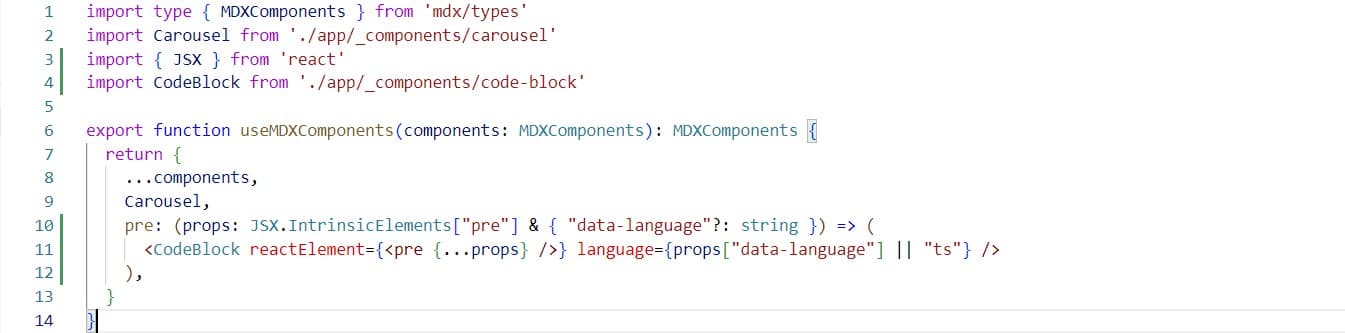
To get this to work with MDX, I overrode the default <pre> tag with my new component in mdx-components.tsx:
export function useMDXComponents(components: MDXComponents): MDXComponents {
  return {
    ...components,
    pre: (props: JSX.IntrinsicElements["pre"] & { "data-language"?: string }) => (
      <CodeBlock reactElement={<pre {...props} />} language={props["data-language"] || "ts"} />
    ),
  };
}
Now every <pre> tag is automatically replaced with my CodeBlock component, which integrates perfectly with the HTML generated by rehype-pretty-code.
And that is basically it! The setup was pretty straightforward and makes reading code on the blog a much better experience.